> For the complete documentation index, see [llms.txt](https://docs.n8n.io/llms.txt). Markdown versions of documentation pages are available by appending `.md` to page URLs; this page is available as [Markdown](https://docs.n8n.io/integrations/builtin/core-nodes/n8n-nodes-base.webhook.md).

# Webhook

Learn how to use the Webhook node in n8n. Follow technical documentation to integrate Webhook node into your workflows.

Use the Webhook node to create [webhooks](https://en.wikipedia.org/wiki/Webhook), which can receive data from apps and services when an event occurs. It's a trigger node, which means it can start an n8n workflow. This allows services to connect to n8n and run a workflow.

You can use the Webhook node as a trigger for a workflow when you want to receive data and run a workflow based on the data. The Webhook node also supports returning the data generated at the end of a workflow. This makes it useful for building a workflow to process data and return the results, like an API endpoint.

The webhook allows you to trigger workflows from services that don't have a dedicated app trigger node.

## Workflow development process <a href="#workflow-development-process" id="workflow-development-process"></a>

n8n provides different **Webhook URL**s for testing and production. The testing URL includes an option to **Listen for test event**. Refer to [Workflow development](/integrations/builtin/core-nodes/n8n-nodes-base.webhook/workflow-development.md) for more information on building, testing, and shifting your Webhook node to production.

## Node parameters <a href="#node-parameters" id="node-parameters"></a>

Use these parameters to configure your node.

### Webhook URLs <a href="#webhook-urls" id="webhook-urls"></a>

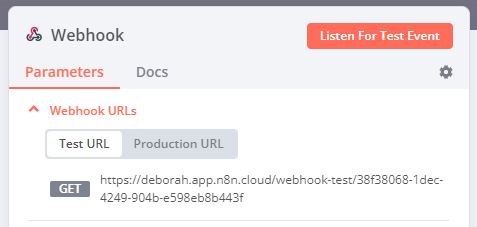
The Webhook node has two **Webhook URLs**: test and production. n8n displays the URLs at the top of the node panel.

Select **Test URL** or **Production URL** to toggle which URL n8n displays.

<figure><img src="https://139179334-files.gitbook.io/~/files/v0/b/gitbook-x-prod.appspot.com/o/spaces%2FBKcbOzIWja8NfqKDcqHc%2Fuploads%2Fgit-blob-961f3401b5b12b61836cc99b2fed11bf8da6b3eb%2Fwebhook-urls.png?alt=media" alt=""><figcaption><p>Sample Webhook URLs in the Webhook node's Parameters tab</p></figcaption></figure>

* **Test**: n8n registers a test webhook when you select **Listen for Test Event** or **Execute workflow**, if the workflow isn't active. When you call the webhook URL, n8n displays the data in the workflow.
* **Production**: n8n registers a production webhook when you publish the workflow. When using the production URL, n8n doesn't display the data in the workflow. You can still view workflow data for a production execution: select the **Executions** tab in the workflow, then select the workflow execution you want to view.

### HTTP Method <a href="#http-method" id="http-method"></a>

The Webhook node supports standard [HTTP Request Methods](https://developer.mozilla.org/en-US/docs/Web/HTTP/Methods):

* DELETE
* GET
* HEAD
* PATCH
* POST
* PUT<br>

  <div data-gb-custom-block data-tag="hint" data-style="info" class="hint hint-info"><p><strong>Webhook max payload</strong></p><p>The webhook maximum payload size is 16MB. If you're self-hosting n8n, you can change this using the <a href="/deploy/host-n8n/configure-n8n/basic-configuration/use-environment-variables/endpoints.md">endpoint environment variable</a> <code>N8N_PAYLOAD_SIZE_MAX</code>.</p></div>

### Path <a href="#path" id="path"></a>

By default, this field contains a randomly generated webhook URL path, to avoid conflicts with other webhook nodes.

You can manually specify a URL path, including adding route parameters. For example, you may need to do this if you use n8n to prototype an API and want consistent endpoint URLs.

The **Path** field can take the following formats:

* `/:variable`
* `/path/:variable`
* `/:variable/path`
* `/:variable1/path/:variable2`
* `/:variable1/:variable2`

### Supported authentication methods <a href="#supported-authentication-methods" id="supported-authentication-methods"></a>

You can require authentication for any service calling your webhook URL. Choose from these authentication methods:

* Basic auth
* Header auth
* JWT auth
* **n8n User Auth (OAuth2)**
* None

Refer to [Webhook credentials](/integrations/builtin/credentials/webhook.md) for more information on setting up the Basic auth, Header auth, and JWT auth credential types.

#### Using n8n User Auth (OAuth2)

Only users logged in to this n8n instance can call the webhook. The caller must send an OAuth2 bearer token issued by this instance. n8n resolves the token to the calling user and runs the execution as that user. [End-user credentials](/administer/manage-credentials/end-user-credentials.md) resolve to the calling user's connected accounts under this mode.

Requests without a bearer token are handled as follows:

* A GET request from a browser is redirected to the n8n sign-in page. After the user signs in and gives consent, n8n redirects the browser back to the webhook URL and runs the workflow.
* Any other request receives a 401 response. Only GET requests can be redirected.

The **OAuth2 Client** option in [Node options](#node-options) controls this behavior.

When you select **n8n User Auth (OAuth2)**, a **Require Workflow Execute Permission** toggle appears. It is on by default. When it is on, the calling user must also have permission to execute the workflow in the project it belongs to. Users who are logged in but lack execute permission on the workflow can't trigger it. A request with a bearer token from such a user receives a 403 response.

#### Calling a webhook that uses n8n User Auth (OAuth2)

n8n is the OAuth2 authorization server for the webhook. How the caller gets a bearer token depends on the caller:

* **A browser:** Open the webhook URL. n8n redirects you to the sign-in page and the consent screen, then runs the workflow. This works for GET requests only, and only when **OAuth2 Client** is **Auto-Detect** or **Browser (Virtual Client)**.
* **A client that supports OAuth 2.1 discovery:** Set **OAuth2 Client** to **Bearer Token Only**, or use **Auto-Detect** for non-browser requests, then send the request without a token. The 401 response carries a `WWW-Authenticate` header with a `resource_metadata` URL. Clients that support protected resource metadata, dynamic client registration, and PKCE use that URL to complete sign-in and consent without manual setup.
* **Your own script or service:** Complete the OAuth2 authorization code flow against the n8n instance:
  1. Read the authorization server metadata at `https://<your-n8n-url>/.well-known/oauth-authorization-server`. It lists the registration, authorization, and token endpoints.
  2. Register a client at the registration endpoint, or reuse a client you registered before.
  3. Send the user to the authorization endpoint with PKCE (`S256`) and the `resource` parameter set to the webhook URL plus `?method=<HTTP method>`, for example `https://<your-n8n-url>/webhook/my-path?method=POST`. The user signs in and gives consent.
  4. Exchange the authorization code at the token endpoint for an access token and a refresh token.
  5. Call the webhook with the `Authorization: Bearer <access token>` header.

A token is bound to the webhook trigger it was issued for. A token issued for another trigger, or for the instance's MCP server, receives a 401 response.

### Respond <a href="#respond" id="respond"></a>

* **Immediately**: The Webhook node returns the response code and the message **Workflow got started**.
* **When Last Node Finishes**: The Webhook node returns the response code and the data output from the last node executed in the workflow.
* **Using 'Respond to Webhook' Node**: The Webhook node responds as defined in the [Respond to Webhook](/integrations/builtin/core-nodes/n8n-nodes-base.respondtowebhook.md) node.
* **Streaming response**: Enables real-time data streaming back to the user as the workflow processes. Requires nodes with streaming support in the workflow (for example, the [AI agent](/integrations/builtin/cluster-nodes/root-nodes/n8n-nodes-langchain.agent.md) node).

### Response Code <a href="#response-code" id="response-code"></a>

Customize the [HTTP response code](https://developer.mozilla.org/en-US/docs/Web/HTTP/Status) that the Webhook node returns upon successful execution. Select from common response codes or create a custom code.

### Response Data <a href="#response-data" id="response-data"></a>

Choose what data to include in the response body:

* **All Entries**: The Webhook returns all the entries of the last node in an array.
* **First Entry JSON**: The Webhook returns the JSON data of the first entry of the last node in a JSON object.
* **First Entry Binary**: The Webhook returns the binary data of the first entry of the last node in a binary file.
* **No Response Body**: The Webhook returns without a body.

Applies only to **Respond > When Last Node Finishes**.

## Node options <a href="#node-options" id="node-options"></a>

Select **Add Option** to view more configuration options. The available options depend on your node parameters. Refer to the table for option availability.

* **Allowed Origins (CORS)**: Set the permitted cross-origin domains. Enter a comma-separated list of URLs allowed for cross-origin non-preflight requests. Use `*` (default) to allow all origins.
* **Binary Property**: Enabling this setting allows the Webhook node to receive binary data, such as an image or audio file. Enter the name of the binary property to write the data of the received file to.
* **Ignore Bots**: Ignore requests from bots like link previewers and web crawlers.
* **IP(s) Allowlist**: Enable this to limit who (or what) can invoke a Webhook trigger URL. Enter a comma-separated list of allowed IP addresses. Access from IP addresses outside the allowlist throws a 403 error. If left blank, all IP addresses can invoke the webhook trigger URL.
* **No Response Body**: Enable this to prevent n8n sending a body with the response.
* **OAuth2 Client**: How n8n handles a request without a bearer token when **Authentication** is **n8n User Auth (OAuth2)**. **Auto-Detect** (default) redirects browser navigations through the n8n sign-in page and requires a bearer token from everything else. **Bearer Token Only** always requires a bearer token and never redirects. **Browser (Virtual Client)** always redirects GET requests without a bearer token through the n8n sign-in page. Only GET requests can be redirected. Webhook nodes with a version below 2.2 keep the **Bearer Token Only** behavior until you set this option.
* **Only Run If**: An expression evaluated against the incoming request. The workflow only runs if the expression returns `true`. Use `$json` to access the request as `{ body, headers, params, query }`. For example, `{{ $json.body.campaign_id === 'user-research-invite' }}`. Requests that don't match receive a 200 response without creating an execution. If the expression fails to evaluate, n8n logs a warning and lets the request through rather than blocking it. This runs after IP allowlist and authentication checks, and applies to both test and production webhook URLs.
* **Raw Body**: Specify that the Webhook node will receive data in a raw format, such as JSON or XML.
* **Response Content-Type**: Choose the format for the webhook body.
* **Response Data**: Send custom data with the response.
* **Response Headers**: Send extra headers in the Webhook response. Refer to [MDN Web Docs | Response header](https://developer.mozilla.org/en-US/docs/Glossary/Response_header) to learn more about response headers.
* **Property Name**: by default, n8n returns all available data. You can choose to return a specific JSON key, so that n8n returns the value.

| Option                 | Required node configuration                                                           |
| ---------------------- | ------------------------------------------------------------------------------------- |
| Allowed Origins (CORS) | Any                                                                                   |
| Binary Property        | <p>Either:<br>HTTP Method > POST<br>HTTP Method > PATCH<br>HTTP Method > PUT</p>      |
| Ignore Bots            | Any                                                                                   |
| IP(s) Allowlist        | Any                                                                                   |
| Only Run If            | Any                                                                                   |
| Property Name          | <p>Both:<br>Respond > When Last Node Finishes<br>Response Data > First Entry JSON</p> |
| No Response Body       | Respond > Immediately                                                                 |
| OAuth2 Client          | Authentication > n8n User Auth (OAuth2)                                               |
| Raw Body               | Any                                                                                   |
| Response Code          | Any except Respond > Using 'Respond to Webhook' Node                                  |
| Response Content-Type  | <p>Both:<br>Respond > When Last Node Finishes<br>Response Data > First Entry JSON</p> |
| Response Data          | Respond > Immediately                                                                 |
| Response Headers       | Any                                                                                   |

## How n8n secures HTML responses <a href="#how-n8n-secures-html-responses" id="how-n8n-secures-html-responses"></a>

{% hint style="info" %}
**Feature availability**

Automatic wrapping of HTML responses to webhooks in `<iframe>` tags was introduced in n8n 1.103.0.
{% endhint %}

Starting with n8n 1.103.0, n8n automatically wraps HTML responses to webhooks in `<iframe>` tags. This is a security mechanism to protect the instance users.

This has the following implications:

* HTML renders in a sandboxed iframe instead of directly in the parent document.
* JavaScript code that attempts to access the top-level window or local storage will fail.
* Authentication headers aren't available in the sandboxed iframe (for example, basic auth). You need to use an alternative approach, like embedding a short-lived access token within the HTML.
* Relative URLs (for example, `<form action="/">`) won't work. Use absolute URLs instead.

## Templates and examples <a href="#templates-and-examples" id="templates-and-examples"></a>

[Browse n8n-nodes-base.webhook integration templates](https://n8n.io/integrations/webhook) or [search all templates](https://n8n.io/workflows/)

## FAQ

### How do I trigger a workflow from an external event?

Add the Webhook node as your trigger. It creates a [webhook URL](#webhook-urls) that receives data from apps and services when an event occurs, then starts your workflow with that data. It's useful for services that don't have a dedicated app trigger node.

### What's the difference between the test and production webhook URLs?

The node has two [webhook URLs](#webhook-urls). The **test** URL works when you select **Listen for Test Event**, and it shows the incoming data in the editor. The **production** URL registers when you publish the workflow, and it doesn't display data in the editor. You can view production runs in the workflow's **Executions** tab.

### How do I secure a webhook?

Require authentication in [Supported authentication methods](#supported-authentication-methods). You can use Basic auth, Header auth, or JWT auth for any service calling the URL, or n8n User Auth (OAuth2) to limit callers to logged-in users of this n8n instance. You can also limit callers with the **IP(s) Allowlist** node option. Refer to [Webhook credentials](/integrations/builtin/credentials/webhook.md).

## Common issues <a href="#common-issues" id="common-issues"></a>

For common questions or issues and suggested solutions, refer to [Common issues](/integrations/builtin/core-nodes/n8n-nodes-base.webhook/common-issues.md).
