 connector on the Schedule Trigger node.
2. Search for **NASA**. n8n shows a list of nodes that match the search.
3. Select **NASA** to view a list of operations.
4. Search for and select **Get a DONKI solar flare**. This operation returns a report about recent solar flares. When you select the operation, n8n adds the node to the canvas and opens it.
5. To access the NASA APIs, you need to set up credentials:
1. Select the **Credential for NASA API** dropdown.
2. Select **Create new credential**. n8n opens the credentials view.
3. Go to [NASA APIs](https://api.nasa.gov/) and fill out the form from the **Generate API Key** link. The NASA site generates the key and emails it to the address you entered.
4. Check your email account for the API key. If you don’t see it, check your junk or spam folder. Copy the key, and paste it into **API Key** in n8n.
5. Select **Save**.
6. Close the credentials screen. n8n returns to the node. The new credentials should be automatically selected in **Credential for NASA API**.
6. By default, DONKI Solar Flare provides data for the past 30 days. To limit it to just the last week, use **Additional Fields**:
connector on the Schedule Trigger node.
2. Search for **NASA**. n8n shows a list of nodes that match the search.
3. Select **NASA** to view a list of operations.
4. Search for and select **Get a DONKI solar flare**. This operation returns a report about recent solar flares. When you select the operation, n8n adds the node to the canvas and opens it.
5. To access the NASA APIs, you need to set up credentials:
1. Select the **Credential for NASA API** dropdown.
2. Select **Create new credential**. n8n opens the credentials view.
3. Go to [NASA APIs](https://api.nasa.gov/) and fill out the form from the **Generate API Key** link. The NASA site generates the key and emails it to the address you entered.
4. Check your email account for the API key. If you don’t see it, check your junk or spam folder. Copy the key, and paste it into **API Key** in n8n.
5. Select **Save**.
6. Close the credentials screen. n8n returns to the node. The new credentials should be automatically selected in **Credential for NASA API**.
6. By default, DONKI Solar Flare provides data for the past 30 days. To limit it to just the last week, use **Additional Fields**: to open the full expressions editor.
4. In the **Expression** field, enter the following expression:
```js
{{ $today.minus(7, 'days') }}
```
This generates a date in the correct format, seven days before the current date.
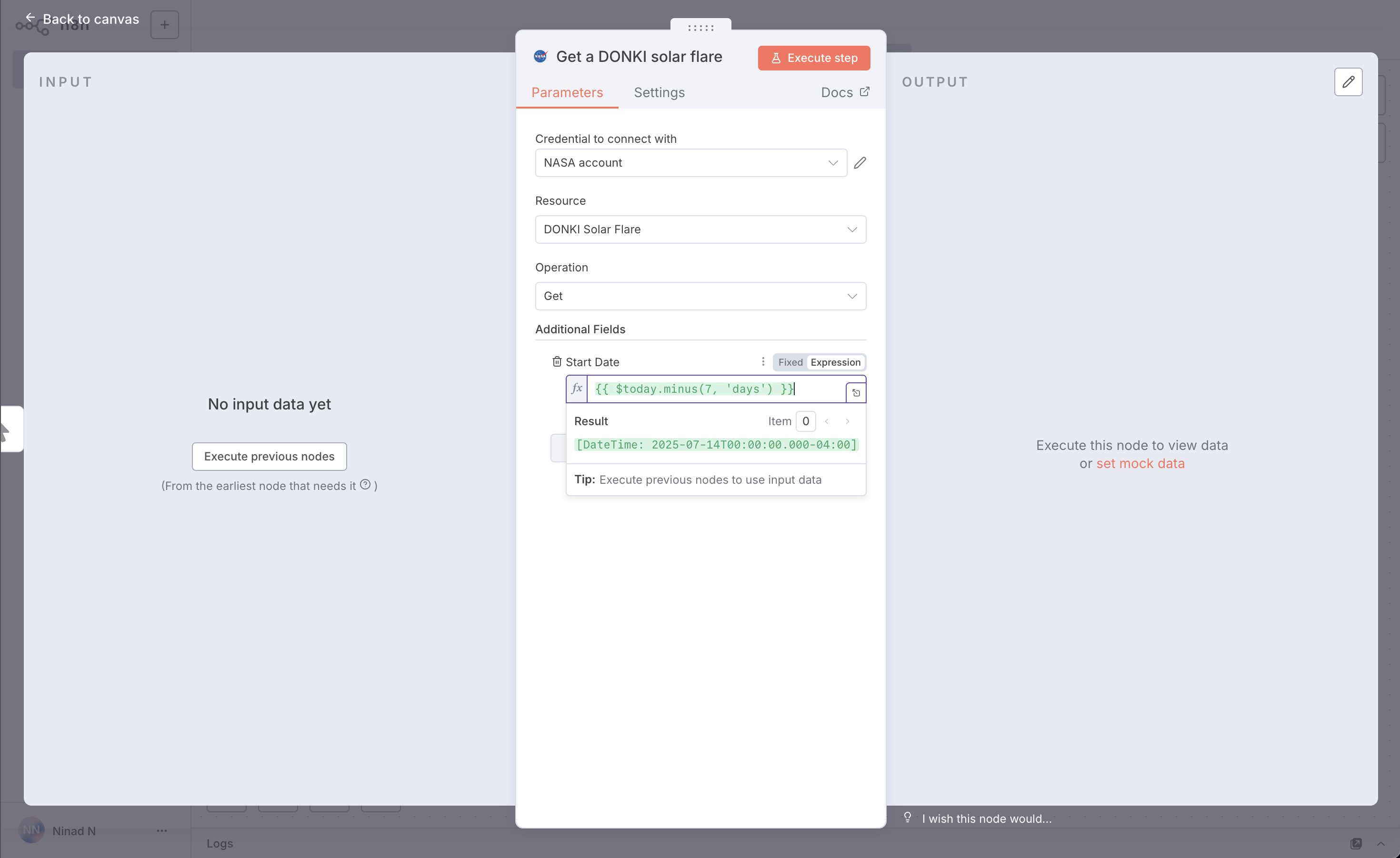
7. Close the **Edit Expression** modal to return to the NASA node.
8. You can now check that the node is working and returning the expected date: select **Execute step** to run the node manually. n8n calls the NASA API and displays details of solar flares in the past seven days in the **OUTPUT** section.
9. Close the NASA node to return to the workflow canvas.
## Step four: Add logic with the If node
n8n supports complex logic in workflows. This tutorial uses the [If node](/integrations/builtin/core-nodes/n8n-nodes-base.if.md) to create two branches that each generate a report from the NASA data. Solar flares have five possible classifications. The If node sends a report with the lower classifications to one output, and the higher classifications to another.
Add the If node:
1. Select the **Add node** connector on the NASA node.
2. Search for **If**. n8n shows a list of nodes that match the search.
3. Select **If** to add the node to the canvas. n8n opens the node.
4. You need to check the value of the `classType` property in the NASA data. To do this:
1. Drag **classType** into **Value 1**.
to open the full expressions editor.
4. In the **Expression** field, enter the following expression:
```js
{{ $today.minus(7, 'days') }}
```
This generates a date in the correct format, seven days before the current date.

7. Close the **Edit Expression** modal to return to the NASA node.
8. You can now check that the node is working and returning the expected date: select **Execute step** to run the node manually. n8n calls the NASA API and displays details of solar flares in the past seven days in the **OUTPUT** section.
9. Close the NASA node to return to the workflow canvas.
## Step four: Add logic with the If node
n8n supports complex logic in workflows. This tutorial uses the [If node](/integrations/builtin/core-nodes/n8n-nodes-base.if.md) to create two branches that each generate a report from the NASA data. Solar flares have five possible classifications. The If node sends a report with the lower classifications to one output, and the higher classifications to another.
Add the If node:
1. Select the **Add node** connector on the NASA node.
2. Search for **If**. n8n shows a list of nodes that match the search.
3. Select **If** to add the node to the canvas. n8n opens the node.
4. You need to check the value of the `classType` property in the NASA data. To do this:
1. Drag **classType** into **Value 1**.Make sure you ran the NASA node in the previous section
If you didn't follow the step in the previous section to run the NASA node, you won't see any data to work with in this step.
Weeks without large solar flares
In this tutorial, you are working with live data. If you find there aren't any X class solar flares when you run the workflow, try replacing X in Value 2 with either A, B, C, or M.
connector labeled **true**.
2. Search for **PostBin**. n8n shows a list of nodes that match the search.
3. Select **PostBin**.
4. Select **Send a request**. n8n adds the node to the canvas and opens it.
5. Go to [Postbin](https://www.toptal.com/developers/postbin/) and select **Create Bin**. Leave the tab open so you can come back to it when testing the workflow.
6. Copy the bin ID. It looks like `1651063625300-2016451240051`.
7. In n8n, paste your Postbin ID into **Bin ID**.
8. Now, configure the data to send to Postbin. Next to **Bin Content**, select the **Expression** tab (you will need to mouse-over the **Bin Content** for the tab to appear), then select the expand button to open the full expressions editor.
9. You can now click and drag the correct field from the If node output into the expressions editor to automatically create a reference for this label. In this case, the field you want is `classType`.
10. Once dropped into the expressions editor it will transform into this reference: `{{$json["classType"]}}`. Add a message to it, so that the full expression is:
```js
There was a solar flare of class {{$json["classType"]}}
```
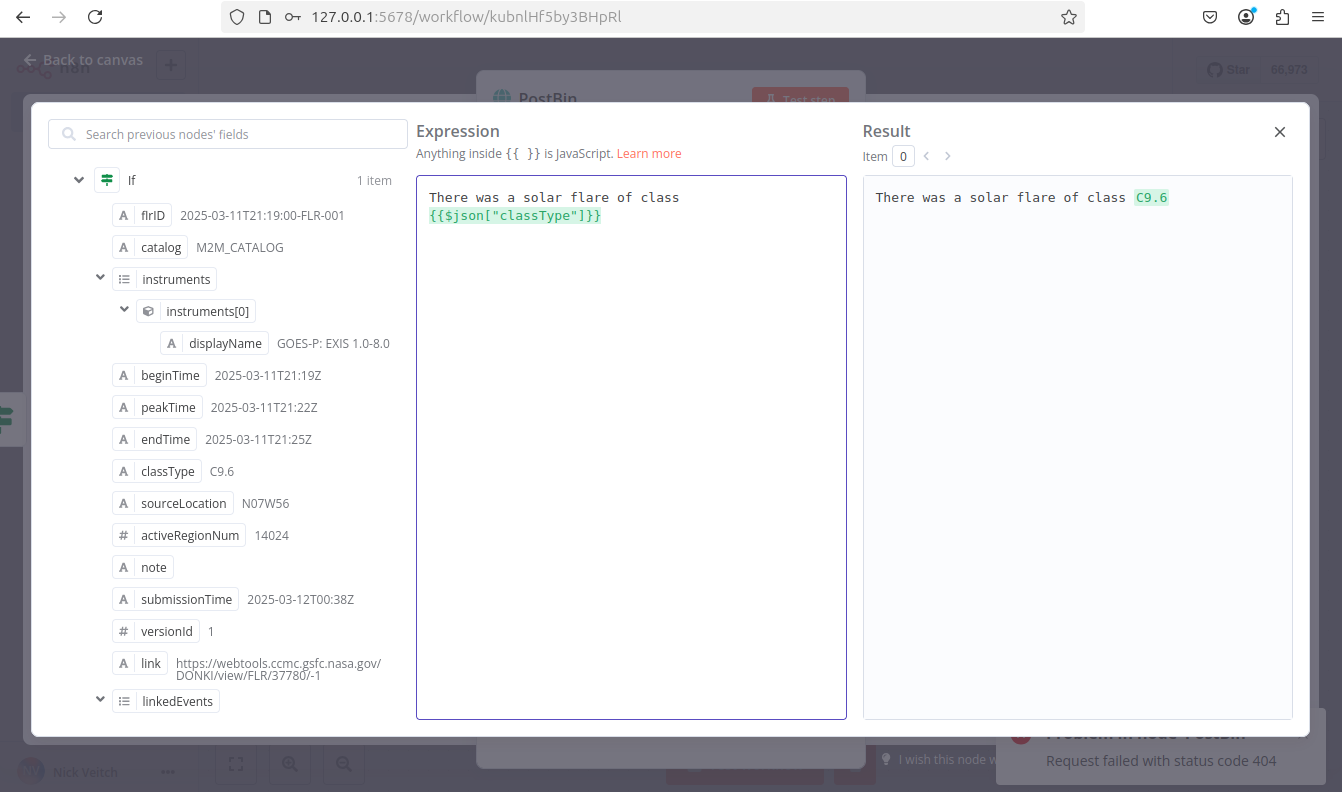
11. Close the expressions editor to return to the node.
12. Close the Postbin node to return to the canvas.
13. Add another Postbin node, to handle the **false** output path from the If node:
1. Hover over the Postbin node, then select **Node context menu**  > **Duplicate node** to duplicate the first Postbin node.
2. Drag the **false** connector from the If node to the left side of the new Postbin node.
## Step six: Test the workflow
1. You can now test the entire workflow. Select **Execute Workflow**. n8n runs the workflow, showing each stage in progress.
2. Go back to your Postbin bin. Refresh the page to see the output.
3. If you want to use this workflow (in other words, if you want it to run once a week automatically), you need to publish it by clicking **Publish**.
{% hint style="info" %}
**Time limit**
Postbin's bins exist for 30 minutes after creation. You may need to create a new bin and update the ID in the Postbin nodes, if you exceed this time limit.
{% endhint %}
## Congratulations
You now have a fully functioning workflow that does something useful! It should look something like this:
{% @n8n-blocks/n8n-workflow-demo content="%7B%0A%20%20%22name%22%3A%20%22Tutorial-workflow%22%2C%0A%20%20%22nodes%22%3A%20%5B%0A%20%20%20%20%7B%0A%20%20%20%20%20%20%22parameters%22%3A%20%7B%0A%20%20%20%20%20%20%20%20%22rule%22%3A%20%7B%0A%20%20%20%20%20%20%20%20%20%20%22interval%22%3A%20%5B%0A%20%20%20%20%20%20%20%20%20%20%20%20%7B%0A%20%20%20%20%20%20%20%20%20%20%20%20%20%20%22field%22%3A%20%22weeks%22%2C%0A%20%20%20%20%20%20%20%20%20%20%20%20%20%20%22triggerAtDay%22%3A%20%5B%0A%20%20%20%20%20%20%20%20%20%20%20%20%20%20%20%201%0A%20%20%20%20%20%20%20%20%20%20%20%20%20%20%5D%2C%0A%20%20%20%20%20%20%20%20%20%20%20%20%20%20%22triggerAtHour%22%3A%209%0A%20%20%20%20%20%20%20%20%20%20%20%20%7D%0A%20%20%20%20%20%20%20%20%20%20%5D%0A%20%20%20%20%20%20%20%20%7D%0A%20%20%20%20%20%20%7D%2C%0A%20%20%20%20%20%20%22type%22%3A%20%22n8n-nodes-base.scheduleTrigger%22%2C%0A%20%20%20%20%20%20%22typeVersion%22%3A%201.2%2C%0A%20%20%20%20%20%20%22position%22%3A%20%5B%0A%20%20%20%20%20%20%20%20-680%2C%0A%20%20%20%20%20%20%20%20100%0A%20%20%20%20%20%20%5D%2C%0A%20%20%20%20%20%20%22id%22%3A%20%22ef14445c-2f5f-4c78-96c8-66732feb7a8f%22%2C%0A%20%20%20%20%20%20%22name%22%3A%20%22Schedule%20Trigger%22%0A%20%20%20%20%7D%2C%0A%20%20%20%20%7B%0A%20%20%20%20%20%20%22parameters%22%3A%20%7B%0A%20%20%20%20%20%20%20%20%22resource%22%3A%20%22donkiSolarFlare%22%2C%0A%20%20%20%20%20%20%20%20%22additionalFields%22%3A%20%7B%0A%20%20%20%20%20%20%20%20%20%20%22startDate%22%3A%20%22%3D%7B%7B%20%24today.minus%287%2C%20%27days%27%29%20%7D%7D%22%0A%20%20%20%20%20%20%20%20%7D%0A%20%20%20%20%20%20%7D%2C%0A%20%20%20%20%20%20%22type%22%3A%20%22n8n-nodes-base.nasa%22%2C%0A%20%20%20%20%20%20%22typeVersion%22%3A%201%2C%0A%20%20%20%20%20%20%22position%22%3A%20%5B%0A%20%20%20%20%20%20%20%20-460%2C%0A%20%20%20%20%20%20%20%20100%0A%20%20%20%20%20%20%5D%2C%0A%20%20%20%20%20%20%22id%22%3A%20%2252c58b93-c780-4aff-a216-d67b28195a45%22%2C%0A%20%20%20%20%20%20%22name%22%3A%20%22NASA%22%2C%0A%20%20%20%20%20%20%22credentials%22%3A%20%7B%0A%20%20%20%20%20%20%20%20%22nasaApi%22%3A%20%7B%0A%20%20%20%20%20%20%20%20%20%20%22id%22%3A%20%22sSVnxV9AcBmBOYn8%22%2C%0A%20%20%20%20%20%20%20%20%20%20%22name%22%3A%20%22NASA%20account%22%0A%20%20%20%20%20%20%20%20%7D%0A%20%20%20%20%20%20%7D%0A%20%20%20%20%7D%2C%0A%20%20%20%20%7B%0A%20%20%20%20%20%20%22parameters%22%3A%20%7B%0A%20%20%20%20%20%20%20%20%22conditions%22%3A%20%7B%0A%20%20%20%20%20%20%20%20%20%20%22options%22%3A%20%7B%0A%20%20%20%20%20%20%20%20%20%20%20%20%22caseSensitive%22%3A%20true%2C%0A%20%20%20%20%20%20%20%20%20%20%20%20%22leftValue%22%3A%20%22%22%2C%0A%20%20%20%20%20%20%20%20%20%20%20%20%22typeValidation%22%3A%20%22strict%22%2C%0A%20%20%20%20%20%20%20%20%20%20%20%20%22version%22%3A%202%0A%20%20%20%20%20%20%20%20%20%20%7D%2C%0A%20%20%20%20%20%20%20%20%20%20%22conditions%22%3A%20%5B%0A%20%20%20%20%20%20%20%20%20%20%20%20%7B%0A%20%20%20%20%20%20%20%20%20%20%20%20%20%20%22id%22%3A%20%222f469c8e-12b3-4ee5-95fc-ff81508d0b43%22%2C%0A%20%20%20%20%20%20%20%20%20%20%20%20%20%20%22leftValue%22%3A%20%22%3D%7B%7B%20%24json.classType%20%7D%7D%22%2C%0A%20%20%20%20%20%20%20%20%20%20%20%20%20%20%22rightValue%22%3A%20%22C%22%2C%0A%20%20%20%20%20%20%20%20%20%20%20%20%20%20%22operator%22%3A%20%7B%0A%20%20%20%20%20%20%20%20%20%20%20%20%20%20%20%20%22type%22%3A%20%22string%22%2C%0A%20%20%20%20%20%20%20%20%20%20%20%20%20%20%20%20%22operation%22%3A%20%22contains%22%0A%20%20%20%20%20%20%20%20%20%20%20%20%20%20%7D%0A%20%20%20%20%20%20%20%20%20%20%20%20%7D%0A%20%20%20%20%20%20%20%20%20%20%5D%2C%0A%20%20%20%20%20%20%20%20%20%20%22combinator%22%3A%20%22and%22%0A%20%20%20%20%20%20%20%20%7D%2C%0A%20%20%20%20%20%20%20%20%22options%22%3A%20%7B%7D%0A%20%20%20%20%20%20%7D%2C%0A%20%20%20%20%20%20%22type%22%3A%20%22n8n-nodes-base.if%22%2C%0A%20%20%20%20%20%20%22typeVersion%22%3A%202.2%2C%0A%20%20%20%20%20%20%22position%22%3A%20%5B%0A%20%20%20%20%20%20%20%20-240%2C%0A%20%20%20%20%20%20%20%20100%0A%20%20%20%20%20%20%5D%2C%0A%20%20%20%20%20%20%22id%22%3A%20%22b54e3289-9ebb-451f-8bac-87edeeeced13%22%2C%0A%20%20%20%20%20%20%22name%22%3A%20%22If%22%0A%20%20%20%20%7D%2C%0A%20%20%20%20%7B%0A%20%20%20%20%20%20%22parameters%22%3A%20%7B%0A%20%20%20%20%20%20%20%20%22resource%22%3A%20%22request%22%2C%0A%20%20%20%20%20%20%20%20%22operation%22%3A%20%22send%22%2C%0A%20%20%20%20%20%20%20%20%22binId%22%3A%20%221741914338605-0907339996192%22%2C%0A%20%20%20%20%20%20%20%20%22binContent%22%3A%20%22%3DThere%20was%20a%20solar%20flare%20of%20class%20%7B%7B%24json%5B%5C%22classType%5C%22%5D%7D%7D%22%2C%0A%20%20%20%20%20%20%20%20%22requestOptions%22%3A%20%7B%7D%0A%20%20%20%20%20%20%7D%2C%0A%20%20%20%20%20%20%22type%22%3A%20%22n8n-nodes-base.postBin%22%2C%0A%20%20%20%20%20%20%22typeVersion%22%3A%201%2C%0A%20%20%20%20%20%20%22position%22%3A%20%5B%0A%20%20%20%20%20%20%20%20-20%2C%0A%20%20%20%20%20%20%20%200%0A%20%20%20%20%20%20%5D%2C%0A%20%20%20%20%20%20%22id%22%3A%20%22a8b602b6-17b1-4274-8d33-73344b6bb8fb%22%2C%0A%20%20%20%20%20%20%22name%22%3A%20%22PostBin%28true%29%22%0A%20%20%20%20%7D%2C%0A%20%20%20%20%7B%0A%20%20%20%20%20%20%22parameters%22%3A%20%7B%0A%20%20%20%20%20%20%20%20%22resource%22%3A%20%22request%22%2C%0A%20%20%20%20%20%20%20%20%22operation%22%3A%20%22send%22%2C%0A%20%20%20%20%20%20%20%20%22binId%22%3A%20%221741914338605-0907339996192%22%2C%0A%20%20%20%20%20%20%20%20%22binContent%22%3A%20%22%3DThere%20was%20a%20solar%20flare%20of%20class%20%7B%7B%24json%5B%5C%22classType%5C%22%5D%7D%7D%22%2C%0A%20%20%20%20%20%20%20%20%22requestOptions%22%3A%20%7B%7D%0A%20%20%20%20%20%20%7D%2C%0A%20%20%20%20%20%20%22type%22%3A%20%22n8n-nodes-base.postBin%22%2C%0A%20%20%20%20%20%20%22typeVersion%22%3A%201%2C%0A%20%20%20%20%20%20%22position%22%3A%20%5B%0A%20%20%20%20%20%20%20%20-20%2C%0A%20%20%20%20%20%20%20%20200%0A%20%20%20%20%20%20%5D%2C%0A%20%20%20%20%20%20%22id%22%3A%20%2209c2c7a4-c229-430d-a5b0-8d7491515d9f%22%2C%0A%20%20%20%20%20%20%22name%22%3A%20%22PostBin%28false%29%22%0A%20%20%20%20%7D%2C%0A%20%20%20%20%7B%0A%20%20%20%20%20%20%22parameters%22%3A%20%7B%0A%20%20%20%20%20%20%20%20%22content%22%3A%20%22%23%23%20Setup%20required%5Cn%5CnYou%20need%20to%20create%20a%20NASA%20account%20and%20create%20credentials%2C%20and%20create%20a%20bin%20with%20Postbin%20and%20enter%20the%20ID%20-%20see%20%5Bthe%20documentation%5D%28https%3A%2F%2Fdocs.n8n.io%2Ftry-it-out%2Flonger-introduction%2F%29%22%2C%0A%20%20%20%20%20%20%20%20%22height%22%3A%20120%2C%0A%20%20%20%20%20%20%20%20%22width%22%3A%20600%0A%20%20%20%20%20%20%7D%2C%0A%20%20%20%20%20%20%22type%22%3A%20%22n8n-nodes-base.stickyNote%22%2C%0A%20%20%20%20%20%20%22typeVersion%22%3A%201%2C%0A%20%20%20%20%20%20%22position%22%3A%20%5B%0A%20%20%20%20%20%20%20%20-720%2C%0A%20%20%20%20%20%20%20%20-60%0A%20%20%20%20%20%20%5D%2C%0A%20%20%20%20%20%20%22id%22%3A%20%2208e0b8f9-c90e-4c9c-a663-01aca805b9be%22%2C%0A%20%20%20%20%20%20%22name%22%3A%20%22Sticky%20Note%22%0A%20%20%20%20%7D%0A%20%20%5D%2C%0A%20%20%22pinData%22%3A%20%7B%7D%2C%0A%20%20%22connections%22%3A%20%7B%0A%20%20%20%20%22Schedule%20Trigger%22%3A%20%7B%0A%20%20%20%20%20%20%22main%22%3A%20%5B%0A%20%20%20%20%20%20%20%20%5B%0A%20%20%20%20%20%20%20%20%20%20%7B%0A%20%20%20%20%20%20%20%20%20%20%20%20%22node%22%3A%20%22NASA%22%2C%0A%20%20%20%20%20%20%20%20%20%20%20%20%22type%22%3A%20%22main%22%2C%0A%20%20%20%20%20%20%20%20%20%20%20%20%22index%22%3A%200%0A%20%20%20%20%20%20%20%20%20%20%7D%0A%20%20%20%20%20%20%20%20%5D%0A%20%20%20%20%20%20%5D%0A%20%20%20%20%7D%2C%0A%20%20%20%20%22NASA%22%3A%20%7B%0A%20%20%20%20%20%20%22main%22%3A%20%5B%0A%20%20%20%20%20%20%20%20%5B%0A%20%20%20%20%20%20%20%20%20%20%7B%0A%20%20%20%20%20%20%20%20%20%20%20%20%22node%22%3A%20%22If%22%2C%0A%20%20%20%20%20%20%20%20%20%20%20%20%22type%22%3A%20%22main%22%2C%0A%20%20%20%20%20%20%20%20%20%20%20%20%22index%22%3A%200%0A%20%20%20%20%20%20%20%20%20%20%7D%0A%20%20%20%20%20%20%20%20%5D%0A%20%20%20%20%20%20%5D%0A%20%20%20%20%7D%2C%0A%20%20%20%20%22If%22%3A%20%7B%0A%20%20%20%20%20%20%22main%22%3A%20%5B%0A%20%20%20%20%20%20%20%20%5B%0A%20%20%20%20%20%20%20%20%20%20%7B%0A%20%20%20%20%20%20%20%20%20%20%20%20%22node%22%3A%20%22PostBin%28true%29%22%2C%0A%20%20%20%20%20%20%20%20%20%20%20%20%22type%22%3A%20%22main%22%2C%0A%20%20%20%20%20%20%20%20%20%20%20%20%22index%22%3A%200%0A%20%20%20%20%20%20%20%20%20%20%7D%0A%20%20%20%20%20%20%20%20%5D%2C%0A%20%20%20%20%20%20%20%20%5B%0A%20%20%20%20%20%20%20%20%20%20%7B%0A%20%20%20%20%20%20%20%20%20%20%20%20%22node%22%3A%20%22PostBin%28false%29%22%2C%0A%20%20%20%20%20%20%20%20%20%20%20%20%22type%22%3A%20%22main%22%2C%0A%20%20%20%20%20%20%20%20%20%20%20%20%22index%22%3A%200%0A%20%20%20%20%20%20%20%20%20%20%7D%0A%20%20%20%20%20%20%20%20%5D%0A%20%20%20%20%20%20%5D%0A%20%20%20%20%7D%0A%20%20%7D%2C%0A%20%20%22active%22%3A%20false%2C%0A%20%20%22settings%22%3A%20%7B%0A%20%20%20%20%22executionOrder%22%3A%20%22v1%22%0A%20%20%7D%2C%0A%20%20%22versionId%22%3A%20%2237de4877-e4f6-4b9a-b6f0-9b7e7aea0163%22%2C%0A%20%20%22meta%22%3A%20%7B%0A%20%20%20%20%22templateCredsSetupCompleted%22%3A%20true%2C%0A%20%20%20%20%22instanceId%22%3A%20%22cb484ba7b742928a2048bf8829668bed5b5ad9787579adea888f05980292a4a7%22%0A%20%20%7D%2C%0A%20%20%22id%22%3A%20%22DPzMzTIyDrYohiw4%22%2C%0A%20%20%22tags%22%3A%20%5B%0A%20%20%20%20%7B%0A%20%20%20%20%20%20%22createdAt%22%3A%20%222021-06-25T07%3A47%3A07.640Z%22%2C%0A%20%20%20%20%20%20%22updatedAt%22%3A%20%222021-06-25T07%3A47%3A07.640Z%22%2C%0A%20%20%20%20%20%20%22id%22%3A%20%221%22%2C%0A%20%20%20%20%20%20%22name%22%3A%20%22docs%22%0A%20%20%20%20%7D%0A%20%20%5D%0A%7D" url="
> **Duplicate node** to duplicate the first Postbin node.
2. Drag the **false** connector from the If node to the left side of the new Postbin node.
## Step six: Test the workflow
1. You can now test the entire workflow. Select **Execute Workflow**. n8n runs the workflow, showing each stage in progress.
2. Go back to your Postbin bin. Refresh the page to see the output.
3. If you want to use this workflow (in other words, if you want it to run once a week automatically), you need to publish it by clicking **Publish**.
{% hint style="info" %}
**Time limit**
Postbin's bins exist for 30 minutes after creation. You may need to create a new bin and update the ID in the Postbin nodes, if you exceed this time limit.
{% endhint %}
## Congratulations
You now have a fully functioning workflow that does something useful! It should look something like this:
{% @n8n-blocks/n8n-workflow-demo content="%7B%0A%20%20%22name%22%3A%20%22Tutorial-workflow%22%2C%0A%20%20%22nodes%22%3A%20%5B%0A%20%20%20%20%7B%0A%20%20%20%20%20%20%22parameters%22%3A%20%7B%0A%20%20%20%20%20%20%20%20%22rule%22%3A%20%7B%0A%20%20%20%20%20%20%20%20%20%20%22interval%22%3A%20%5B%0A%20%20%20%20%20%20%20%20%20%20%20%20%7B%0A%20%20%20%20%20%20%20%20%20%20%20%20%20%20%22field%22%3A%20%22weeks%22%2C%0A%20%20%20%20%20%20%20%20%20%20%20%20%20%20%22triggerAtDay%22%3A%20%5B%0A%20%20%20%20%20%20%20%20%20%20%20%20%20%20%20%201%0A%20%20%20%20%20%20%20%20%20%20%20%20%20%20%5D%2C%0A%20%20%20%20%20%20%20%20%20%20%20%20%20%20%22triggerAtHour%22%3A%209%0A%20%20%20%20%20%20%20%20%20%20%20%20%7D%0A%20%20%20%20%20%20%20%20%20%20%5D%0A%20%20%20%20%20%20%20%20%7D%0A%20%20%20%20%20%20%7D%2C%0A%20%20%20%20%20%20%22type%22%3A%20%22n8n-nodes-base.scheduleTrigger%22%2C%0A%20%20%20%20%20%20%22typeVersion%22%3A%201.2%2C%0A%20%20%20%20%20%20%22position%22%3A%20%5B%0A%20%20%20%20%20%20%20%20-680%2C%0A%20%20%20%20%20%20%20%20100%0A%20%20%20%20%20%20%5D%2C%0A%20%20%20%20%20%20%22id%22%3A%20%22ef14445c-2f5f-4c78-96c8-66732feb7a8f%22%2C%0A%20%20%20%20%20%20%22name%22%3A%20%22Schedule%20Trigger%22%0A%20%20%20%20%7D%2C%0A%20%20%20%20%7B%0A%20%20%20%20%20%20%22parameters%22%3A%20%7B%0A%20%20%20%20%20%20%20%20%22resource%22%3A%20%22donkiSolarFlare%22%2C%0A%20%20%20%20%20%20%20%20%22additionalFields%22%3A%20%7B%0A%20%20%20%20%20%20%20%20%20%20%22startDate%22%3A%20%22%3D%7B%7B%20%24today.minus%287%2C%20%27days%27%29%20%7D%7D%22%0A%20%20%20%20%20%20%20%20%7D%0A%20%20%20%20%20%20%7D%2C%0A%20%20%20%20%20%20%22type%22%3A%20%22n8n-nodes-base.nasa%22%2C%0A%20%20%20%20%20%20%22typeVersion%22%3A%201%2C%0A%20%20%20%20%20%20%22position%22%3A%20%5B%0A%20%20%20%20%20%20%20%20-460%2C%0A%20%20%20%20%20%20%20%20100%0A%20%20%20%20%20%20%5D%2C%0A%20%20%20%20%20%20%22id%22%3A%20%2252c58b93-c780-4aff-a216-d67b28195a45%22%2C%0A%20%20%20%20%20%20%22name%22%3A%20%22NASA%22%2C%0A%20%20%20%20%20%20%22credentials%22%3A%20%7B%0A%20%20%20%20%20%20%20%20%22nasaApi%22%3A%20%7B%0A%20%20%20%20%20%20%20%20%20%20%22id%22%3A%20%22sSVnxV9AcBmBOYn8%22%2C%0A%20%20%20%20%20%20%20%20%20%20%22name%22%3A%20%22NASA%20account%22%0A%20%20%20%20%20%20%20%20%7D%0A%20%20%20%20%20%20%7D%0A%20%20%20%20%7D%2C%0A%20%20%20%20%7B%0A%20%20%20%20%20%20%22parameters%22%3A%20%7B%0A%20%20%20%20%20%20%20%20%22conditions%22%3A%20%7B%0A%20%20%20%20%20%20%20%20%20%20%22options%22%3A%20%7B%0A%20%20%20%20%20%20%20%20%20%20%20%20%22caseSensitive%22%3A%20true%2C%0A%20%20%20%20%20%20%20%20%20%20%20%20%22leftValue%22%3A%20%22%22%2C%0A%20%20%20%20%20%20%20%20%20%20%20%20%22typeValidation%22%3A%20%22strict%22%2C%0A%20%20%20%20%20%20%20%20%20%20%20%20%22version%22%3A%202%0A%20%20%20%20%20%20%20%20%20%20%7D%2C%0A%20%20%20%20%20%20%20%20%20%20%22conditions%22%3A%20%5B%0A%20%20%20%20%20%20%20%20%20%20%20%20%7B%0A%20%20%20%20%20%20%20%20%20%20%20%20%20%20%22id%22%3A%20%222f469c8e-12b3-4ee5-95fc-ff81508d0b43%22%2C%0A%20%20%20%20%20%20%20%20%20%20%20%20%20%20%22leftValue%22%3A%20%22%3D%7B%7B%20%24json.classType%20%7D%7D%22%2C%0A%20%20%20%20%20%20%20%20%20%20%20%20%20%20%22rightValue%22%3A%20%22C%22%2C%0A%20%20%20%20%20%20%20%20%20%20%20%20%20%20%22operator%22%3A%20%7B%0A%20%20%20%20%20%20%20%20%20%20%20%20%20%20%20%20%22type%22%3A%20%22string%22%2C%0A%20%20%20%20%20%20%20%20%20%20%20%20%20%20%20%20%22operation%22%3A%20%22contains%22%0A%20%20%20%20%20%20%20%20%20%20%20%20%20%20%7D%0A%20%20%20%20%20%20%20%20%20%20%20%20%7D%0A%20%20%20%20%20%20%20%20%20%20%5D%2C%0A%20%20%20%20%20%20%20%20%20%20%22combinator%22%3A%20%22and%22%0A%20%20%20%20%20%20%20%20%7D%2C%0A%20%20%20%20%20%20%20%20%22options%22%3A%20%7B%7D%0A%20%20%20%20%20%20%7D%2C%0A%20%20%20%20%20%20%22type%22%3A%20%22n8n-nodes-base.if%22%2C%0A%20%20%20%20%20%20%22typeVersion%22%3A%202.2%2C%0A%20%20%20%20%20%20%22position%22%3A%20%5B%0A%20%20%20%20%20%20%20%20-240%2C%0A%20%20%20%20%20%20%20%20100%0A%20%20%20%20%20%20%5D%2C%0A%20%20%20%20%20%20%22id%22%3A%20%22b54e3289-9ebb-451f-8bac-87edeeeced13%22%2C%0A%20%20%20%20%20%20%22name%22%3A%20%22If%22%0A%20%20%20%20%7D%2C%0A%20%20%20%20%7B%0A%20%20%20%20%20%20%22parameters%22%3A%20%7B%0A%20%20%20%20%20%20%20%20%22resource%22%3A%20%22request%22%2C%0A%20%20%20%20%20%20%20%20%22operation%22%3A%20%22send%22%2C%0A%20%20%20%20%20%20%20%20%22binId%22%3A%20%221741914338605-0907339996192%22%2C%0A%20%20%20%20%20%20%20%20%22binContent%22%3A%20%22%3DThere%20was%20a%20solar%20flare%20of%20class%20%7B%7B%24json%5B%5C%22classType%5C%22%5D%7D%7D%22%2C%0A%20%20%20%20%20%20%20%20%22requestOptions%22%3A%20%7B%7D%0A%20%20%20%20%20%20%7D%2C%0A%20%20%20%20%20%20%22type%22%3A%20%22n8n-nodes-base.postBin%22%2C%0A%20%20%20%20%20%20%22typeVersion%22%3A%201%2C%0A%20%20%20%20%20%20%22position%22%3A%20%5B%0A%20%20%20%20%20%20%20%20-20%2C%0A%20%20%20%20%20%20%20%200%0A%20%20%20%20%20%20%5D%2C%0A%20%20%20%20%20%20%22id%22%3A%20%22a8b602b6-17b1-4274-8d33-73344b6bb8fb%22%2C%0A%20%20%20%20%20%20%22name%22%3A%20%22PostBin%28true%29%22%0A%20%20%20%20%7D%2C%0A%20%20%20%20%7B%0A%20%20%20%20%20%20%22parameters%22%3A%20%7B%0A%20%20%20%20%20%20%20%20%22resource%22%3A%20%22request%22%2C%0A%20%20%20%20%20%20%20%20%22operation%22%3A%20%22send%22%2C%0A%20%20%20%20%20%20%20%20%22binId%22%3A%20%221741914338605-0907339996192%22%2C%0A%20%20%20%20%20%20%20%20%22binContent%22%3A%20%22%3DThere%20was%20a%20solar%20flare%20of%20class%20%7B%7B%24json%5B%5C%22classType%5C%22%5D%7D%7D%22%2C%0A%20%20%20%20%20%20%20%20%22requestOptions%22%3A%20%7B%7D%0A%20%20%20%20%20%20%7D%2C%0A%20%20%20%20%20%20%22type%22%3A%20%22n8n-nodes-base.postBin%22%2C%0A%20%20%20%20%20%20%22typeVersion%22%3A%201%2C%0A%20%20%20%20%20%20%22position%22%3A%20%5B%0A%20%20%20%20%20%20%20%20-20%2C%0A%20%20%20%20%20%20%20%20200%0A%20%20%20%20%20%20%5D%2C%0A%20%20%20%20%20%20%22id%22%3A%20%2209c2c7a4-c229-430d-a5b0-8d7491515d9f%22%2C%0A%20%20%20%20%20%20%22name%22%3A%20%22PostBin%28false%29%22%0A%20%20%20%20%7D%2C%0A%20%20%20%20%7B%0A%20%20%20%20%20%20%22parameters%22%3A%20%7B%0A%20%20%20%20%20%20%20%20%22content%22%3A%20%22%23%23%20Setup%20required%5Cn%5CnYou%20need%20to%20create%20a%20NASA%20account%20and%20create%20credentials%2C%20and%20create%20a%20bin%20with%20Postbin%20and%20enter%20the%20ID%20-%20see%20%5Bthe%20documentation%5D%28https%3A%2F%2Fdocs.n8n.io%2Ftry-it-out%2Flonger-introduction%2F%29%22%2C%0A%20%20%20%20%20%20%20%20%22height%22%3A%20120%2C%0A%20%20%20%20%20%20%20%20%22width%22%3A%20600%0A%20%20%20%20%20%20%7D%2C%0A%20%20%20%20%20%20%22type%22%3A%20%22n8n-nodes-base.stickyNote%22%2C%0A%20%20%20%20%20%20%22typeVersion%22%3A%201%2C%0A%20%20%20%20%20%20%22position%22%3A%20%5B%0A%20%20%20%20%20%20%20%20-720%2C%0A%20%20%20%20%20%20%20%20-60%0A%20%20%20%20%20%20%5D%2C%0A%20%20%20%20%20%20%22id%22%3A%20%2208e0b8f9-c90e-4c9c-a663-01aca805b9be%22%2C%0A%20%20%20%20%20%20%22name%22%3A%20%22Sticky%20Note%22%0A%20%20%20%20%7D%0A%20%20%5D%2C%0A%20%20%22pinData%22%3A%20%7B%7D%2C%0A%20%20%22connections%22%3A%20%7B%0A%20%20%20%20%22Schedule%20Trigger%22%3A%20%7B%0A%20%20%20%20%20%20%22main%22%3A%20%5B%0A%20%20%20%20%20%20%20%20%5B%0A%20%20%20%20%20%20%20%20%20%20%7B%0A%20%20%20%20%20%20%20%20%20%20%20%20%22node%22%3A%20%22NASA%22%2C%0A%20%20%20%20%20%20%20%20%20%20%20%20%22type%22%3A%20%22main%22%2C%0A%20%20%20%20%20%20%20%20%20%20%20%20%22index%22%3A%200%0A%20%20%20%20%20%20%20%20%20%20%7D%0A%20%20%20%20%20%20%20%20%5D%0A%20%20%20%20%20%20%5D%0A%20%20%20%20%7D%2C%0A%20%20%20%20%22NASA%22%3A%20%7B%0A%20%20%20%20%20%20%22main%22%3A%20%5B%0A%20%20%20%20%20%20%20%20%5B%0A%20%20%20%20%20%20%20%20%20%20%7B%0A%20%20%20%20%20%20%20%20%20%20%20%20%22node%22%3A%20%22If%22%2C%0A%20%20%20%20%20%20%20%20%20%20%20%20%22type%22%3A%20%22main%22%2C%0A%20%20%20%20%20%20%20%20%20%20%20%20%22index%22%3A%200%0A%20%20%20%20%20%20%20%20%20%20%7D%0A%20%20%20%20%20%20%20%20%5D%0A%20%20%20%20%20%20%5D%0A%20%20%20%20%7D%2C%0A%20%20%20%20%22If%22%3A%20%7B%0A%20%20%20%20%20%20%22main%22%3A%20%5B%0A%20%20%20%20%20%20%20%20%5B%0A%20%20%20%20%20%20%20%20%20%20%7B%0A%20%20%20%20%20%20%20%20%20%20%20%20%22node%22%3A%20%22PostBin%28true%29%22%2C%0A%20%20%20%20%20%20%20%20%20%20%20%20%22type%22%3A%20%22main%22%2C%0A%20%20%20%20%20%20%20%20%20%20%20%20%22index%22%3A%200%0A%20%20%20%20%20%20%20%20%20%20%7D%0A%20%20%20%20%20%20%20%20%5D%2C%0A%20%20%20%20%20%20%20%20%5B%0A%20%20%20%20%20%20%20%20%20%20%7B%0A%20%20%20%20%20%20%20%20%20%20%20%20%22node%22%3A%20%22PostBin%28false%29%22%2C%0A%20%20%20%20%20%20%20%20%20%20%20%20%22type%22%3A%20%22main%22%2C%0A%20%20%20%20%20%20%20%20%20%20%20%20%22index%22%3A%200%0A%20%20%20%20%20%20%20%20%20%20%7D%0A%20%20%20%20%20%20%20%20%5D%0A%20%20%20%20%20%20%5D%0A%20%20%20%20%7D%0A%20%20%7D%2C%0A%20%20%22active%22%3A%20false%2C%0A%20%20%22settings%22%3A%20%7B%0A%20%20%20%20%22executionOrder%22%3A%20%22v1%22%0A%20%20%7D%2C%0A%20%20%22versionId%22%3A%20%2237de4877-e4f6-4b9a-b6f0-9b7e7aea0163%22%2C%0A%20%20%22meta%22%3A%20%7B%0A%20%20%20%20%22templateCredsSetupCompleted%22%3A%20true%2C%0A%20%20%20%20%22instanceId%22%3A%20%22cb484ba7b742928a2048bf8829668bed5b5ad9787579adea888f05980292a4a7%22%0A%20%20%7D%2C%0A%20%20%22id%22%3A%20%22DPzMzTIyDrYohiw4%22%2C%0A%20%20%22tags%22%3A%20%5B%0A%20%20%20%20%7B%0A%20%20%20%20%20%20%22createdAt%22%3A%20%222021-06-25T07%3A47%3A07.640Z%22%2C%0A%20%20%20%20%20%20%22updatedAt%22%3A%20%222021-06-25T07%3A47%3A07.640Z%22%2C%0A%20%20%20%20%20%20%22id%22%3A%20%221%22%2C%0A%20%20%20%20%20%20%22name%22%3A%20%22docs%22%0A%20%20%20%20%7D%0A%20%20%5D%0A%7D" url="